Email Copilot
Introduction
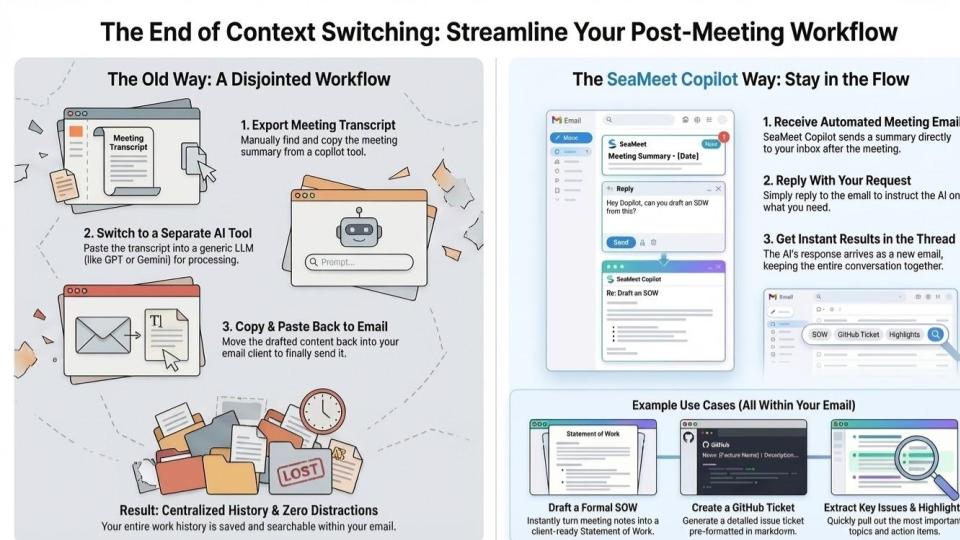
SeaMeet is an AI-powered meeting assistant designed to streamline post-meeting workflows. Unlike traditional tools that require users to copy transcripts into external Large Language Model (LLM) tools (like ChatGPT or Claude), SeaMeet utilizes an “Agentic Email” workflow. This allows users to generate summaries, draft emails, create GitHub tickets, and write Statements of Work (SOW) directly by replying to an email thread, eliminating the need to switch tabs or copy-paste context.
What you will learn in this video:
Most AI meeting tools force you to switch tabs and lose context. SeaMeet changes the game by bringing the AI directly into your email thread. Watch how we go from a raw meeting recording to a finished Statement of Work and GitHub tickets without ever leaving Gmail.
Timestamps:
0:00 - The “Copy-Paste” Problem & Context Switching
0:21 - Introducing SeaMeet Copilot: The Agentic Workflow
1:16 - Demo 1: Extracting Insights & Action Items via Email
2:51 - Demo 2: Generating a Formal Statement of Work (SOW)
4:06 - Demo 3: Drafting Client Emails without Leaving the Thread
5:33 - Demo 4: Creating Technical GitHub Tickets in Markdown
6:32 - Why Staying in the Flow Matters
Prerequisites
To begin using SeaMeet effectively, ensure you have the browser extension installed:
- Download: SeaMeet Chrome Extension
- Account: Sign up at SeaMeet.ai
The Agentic Workflow: Step-by-Step
1. Record Your Meeting Start your meeting (via Zoom, Google Meet, or Microsoft Teams) with SeaMeet enabled. The tool will record and transcribe the session in real-time.
2. Receive the Summary Email Once the meeting concludes, SeaMeet Copilot automatically sends an email to your inbox. This email contains:
- A summary of the discussion.
- Suggested action items.
- A “Reply” prompt feature.
3. Interact with the Copilot (The “Reply” Method) Instead of taking the transcript to a separate AI tool, simply hit Reply to the summary email. You can ask SeaMeet Copilot to perform specific tasks using natural language.
- Example: “Draft a follow-up email to the client summarizing the next steps.”
- Example: “Create a formal Statement of Work (SOW) based on the pricing discussed.”
4. Receive Generated Content SeaMeet will process your request and reply to the same email thread with the generated content. This keeps the context history intact within one conversation.
5. Iterate and Refine Because the context is preserved in the email thread, you can reply again to refine the output.
- Example: “Make the email more polite.”
- Example: “Change the SOW format to a bulleted list.”
Advanced Use Cases
- Project Management Integration: You can ask SeaMeet to convert meeting notes into technical formats. For example: “Create a detailed GitHub issue ticket in Markdown format for the team." SeaMeet will generate the code block ready for copy-pasting.
- Sales & Legal Documents: Generate complex documents like SOWs or proposals by referencing the specific details mentioned in the meeting audio.
- Contextual History: All iterations are saved within the email thread. If you need to revisit why a decision was made months later, the entire conversation history with the AI is preserved in your inbox.