Chinese/Japanese/English Trilingual Meeting Transcription
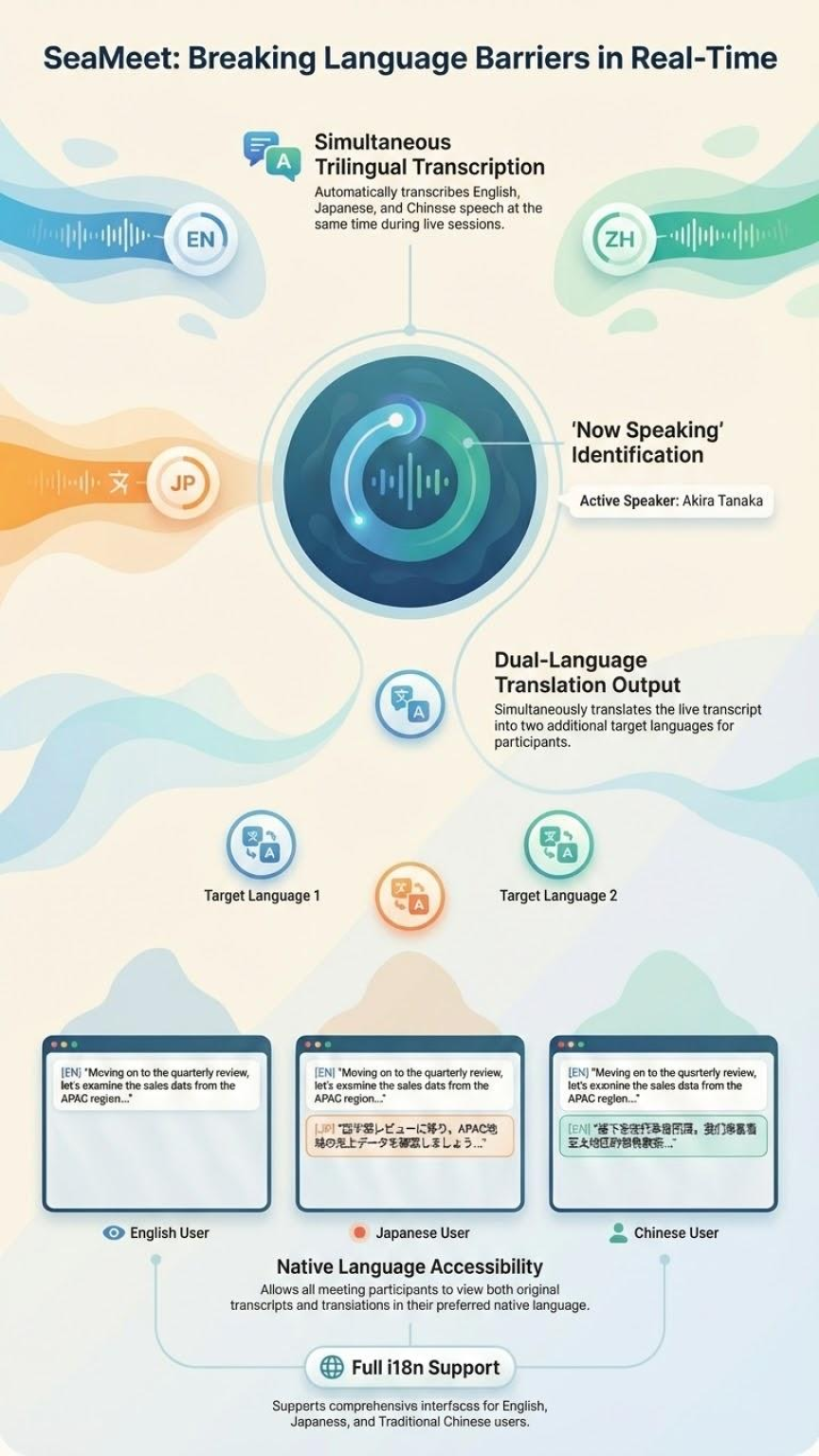
SeaMeet introduces the world’s first Trilingual Meeting Assistant, designed for global teams connecting Asia and the West. This feature creates a “Unified Text Stream” by simultaneously detecting Chinese, Japanese, and English spoken in the same meeting—even within the same sentence (code-switching)—and translating it into two target languages of your choice.
1. Prerequisites
To use the Trilingual Meeting Assistant, ensure you have:
- SeaMeet Extension: Chrome/Edge extension installed in your browser.
- Meeting Platform: Google Meet, Microsoft Teams, or Zoom.
- Audio Environment: A clear microphone input is recommended for the best detection of mixed-language speech.
2. How It Works
Unlike standard transcription which requires you to lock the setting to a single language (e.g., “English Only”), the Trilingual Engine listens for three specific language frequencies at once:
- Mandarin Chinese (Traditional)
- Japanese
- English
When a speaker switches languages mid-sentence (e.g., “大家平安。我 revenue 也增加了”), SeaMeet captures the full context without requiring manual toggling.
3. Configuring Mixed-Language Detection
- Launch SeaMeet: Start your meeting and open the SeaMeet widget sidebar.
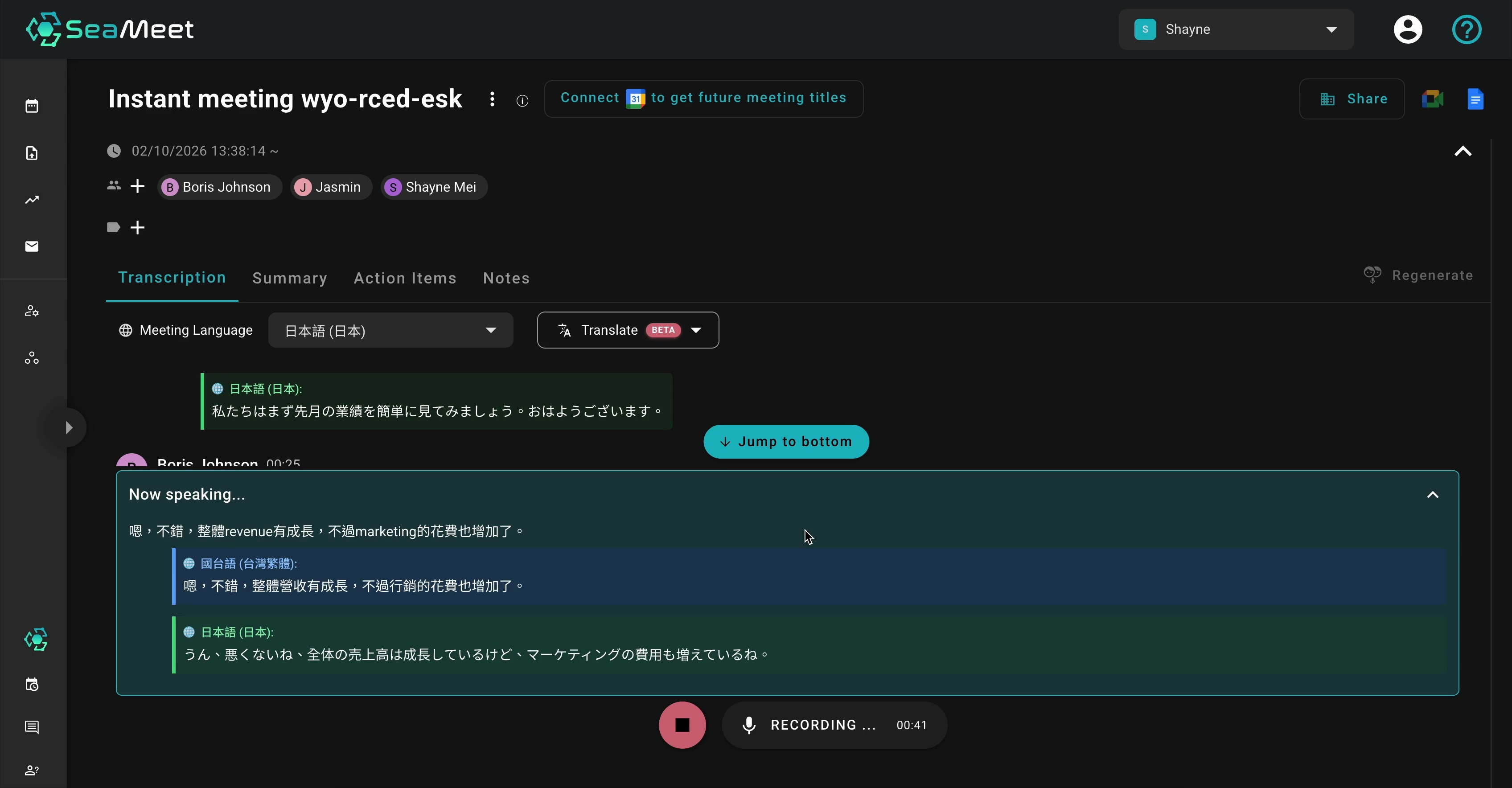
- Access Transcription Settings: Locate the “Meeting Language” dropdown menu above the transcript area.
- Select Multiple Source Languages:
- Click the dropdown.
- Select 日本語 (日本).
- Note: English and Chinese are automatically detected in this mode.
4. Setting Up Dual-Target Translation
The Trilingual feature allows every participant to understand the mixed audio in their native language by displaying two translations simultaneously.
- Enable Translation: Click the “Translate” button (labeled “Beta” in some versions).
- Choose Target 1: Under the first translation slot, select your primary language (e.g., English).
- Choose Target 2: Under the second translation slot, select your secondary language (e.g., 日本語).
- View Results:
- The transcript will now display a 3-row block for every sentence spoken:
- Row 1 (Original): The actual spoken words (mixed C/J/E).
- Row 2 (Translation A): The text translated into your first target language.
- Row 3 (Translation B): The text translated into your second target language.
- The transcript will now display a 3-row block for every sentence spoken:
5. Visual Indicators
To help you quickly identify which language was spoken versus the translations, SeaMeet uses a color-coded interface in the transcript view:
- Blue Indicators: Represent English content or translations.
- Gray/Slate Indicators: Represent Chinese content or translations.
- Orange Indicators: Represent Japanese content or translations.
6. Best Practices
- Context Awareness: The AI is context-aware. For example, it understands business context across cultures to ensure terms like “Sales” aren’t mistranslated when switching between English and Japanese business etiquette.
- Speaker Identification: Ensure speakers are logged in with their names for the best attribution in the “Unified Text Stream.”
- Post-Meeting: The full trilingual transcript is saved to your dashboard, allowing you to search for a keyword in English and find the corresponding moment it was spoken in Chinese or Japanese.