WhatsApp Coexistence
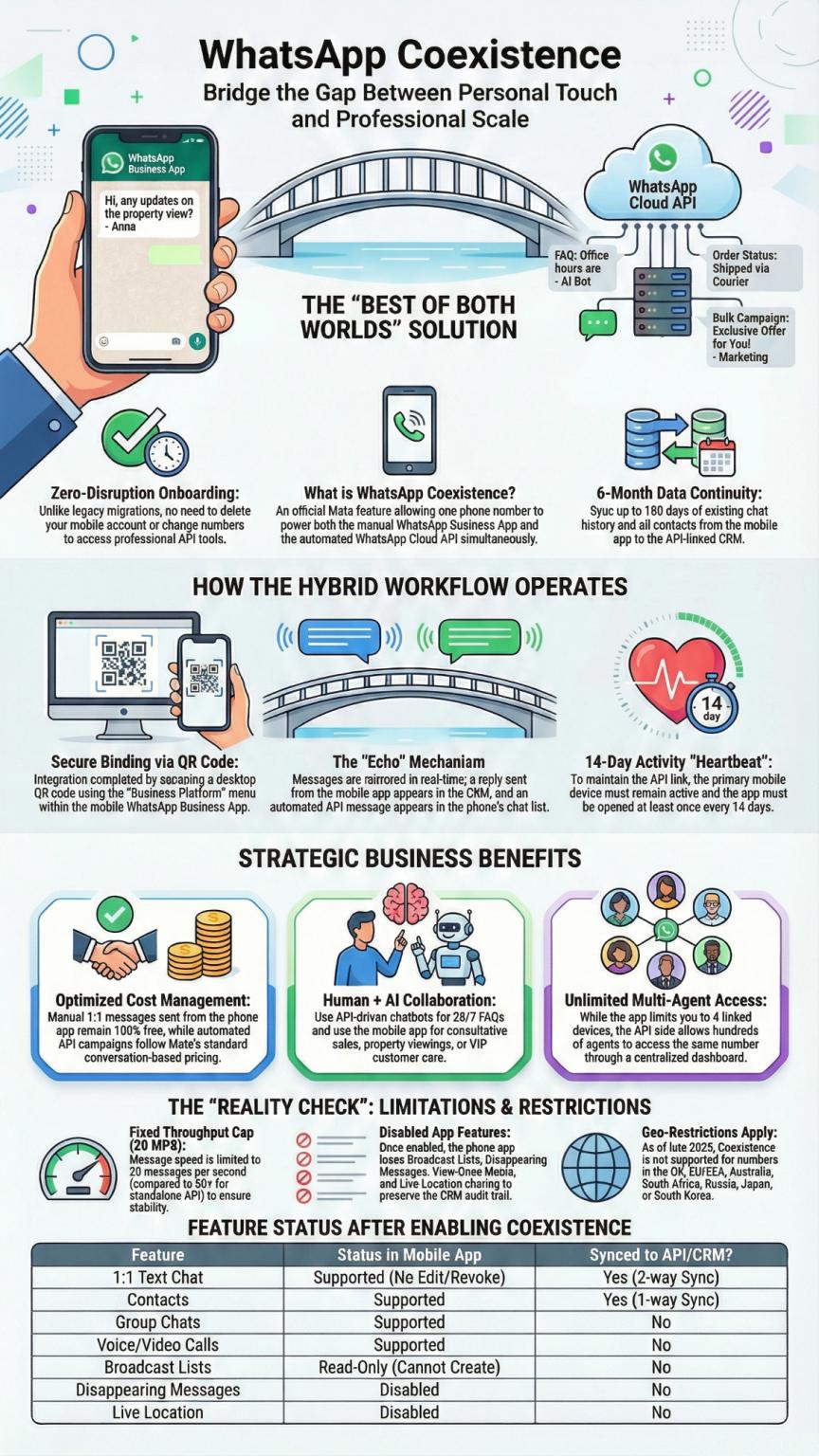
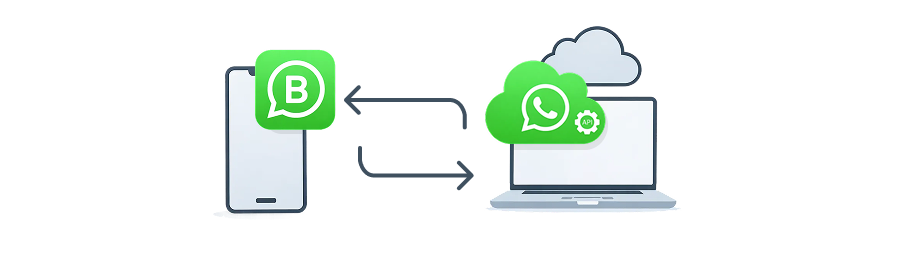
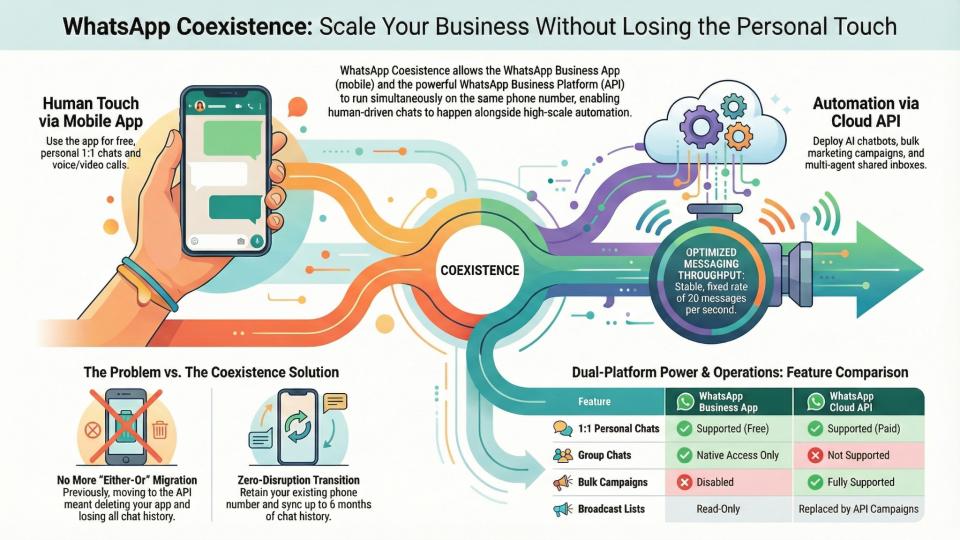
WhatsApp Coexistence is a new offering from Meta that allows business owners to retain the native WhatsApp Business App on their phone while simultaneously gaining the enterprise capabilities of the WhatsApp Cloud API (WhatsApp Business Platform).
This feature solves the “scaling problem” faced by small businesses. Previously, moving to the API meant losing the mobile app interface. With Coexistence, businesses can keep the flexibility of the mobile app for personal use or on-the-go replies, while using Seasalt.ai to scale with unlimited agents, unified inboxes, and automation.
🎥 Video Tutorial
This video tutorial demonstrates how to set up WhatsApp Coexistence, enabling you to sync messages between your phone’s native app, the Seasalt.ai web dashboard, and the Seasalt.ai mobile app.
What you will learn in this video:
Small business owners often face a dilemma: keep the convenient WhatsApp Business App or upgrade to the powerful API and lose the native interface. This video introduces “WhatsApp Coexistence”—a beta offering that gives you the best of both worlds. Watch how SeaX enables you to break the 4-device limit, sync chats in real-time between your physical phone and the web platform, and let employees reply on the go, all while keeping your original Business App active.
Timestamps:
0:00 - The WhatsApp Scaling Problem: Convenience vs. Scale
0:38 - Introducing WhatsApp Coexistence: Best of Both Worlds
0:54 - The Solution: SeaX Unified Inbox
1:29 - Step-by-Step Setup: Linking Your Native App to the Cloud
3:25 - Understanding Data Sharing & Sync Rules
4:50 - Live Demo: Real-Time Sync between Phone & Web Dashboard
6:32 - The “Tri-Sync” Experience: Personal App, Business App, and Platform
7:55 - Scaling Your Team: Agents on the Go with SeaX Mobile App
9:05 - The Owner Experience: Total Control & Flexibility
Prerequisites
Before setting up WhatsApp Coexistence, ensure you have:
Device & Account Requirements
- A smartphone with the WhatsApp Business App installed and active.
- A Meta Business Suite account (Facebook login).
- Admin access to the relevant Meta Business Portfolio.
Platform Access
- Active Seasalt.ai platform account.
- Access to the Channels configuration menu in Seasalt.ai.
Connecting via Coexistence
Initial Setup Process
- Navigate to Channel Settings
- Go to Workspace → Channels in Seasalt.ai.
- Click Add New Channel.
- Select the WhatsApp Coexistence option (Beta Offering).
- Confirm Coexistence
- A confirmation modal will appear explaining the benefits (keeping your phone app active while using the API).
- Click Confirm to proceed.
- Log in with Facebook
- A popup will appear asking you to log in with your Facebook/Meta account.
- Select your Business Portfolio (e.g., “Seasalt AI”).
- Select your WhatsApp Business Account.
Selecting the Coexistence Option
This is the critical step that distinguishes Coexistence from a standard API connection.
- Choose “Connect a WhatsApp Business App”
- In the setup screen, look for the option: Connect a WhatsApp Business App.
- Note: This option only appears if Meta detects you are eligible for the Coexistence beta.
- Do not select “Create a WhatsApp Business Account” if you wish to keep your app history.
- Enter Phone Number
- Enter the phone number currently registered to your WhatsApp Business App.
- You can find this in your app under Settings → Business Profile → scroll down to phone number.
- Click Next.
- Verify Existing Account
- Meta will detect the existing account. Click Next to proceed.
- You will be prompted to Scan a QR Code to link the app.
Linking the Device
- Scan QR Code
- On your computer screen, a QR code will appear labeled “Connect to Business Platform.”
- Open WhatsApp Business App on your phone.
- Go to Settings → Linked Devices → Link a Device.
- Scan the QR code displayed on your screen.
- Confirm Data Sharing
- A prompt on your computer will ask about chat history syncing.
- You can share up to 6 months of chat history (Note: strictly 1-on-1 chats; group chat history is not shared).
- Click Confirm.
- Double Confirmation
- You may be asked to scan the QR code a second time for security confirmation.
- The system will process the connection (this may take a few minutes).
- Finalization
- Once connected, you will receive a message from “Facebook Business” on your WhatsApp mobile app confirming the connection.
- In Seasalt.ai, click Next and Confirm to finish the setup.
Features & Synchronization
Once connected, your business operates in a “Tri-Sync” state, synchronizing data between three points:
- Native WhatsApp Business App: The app stays on your physical phone. You can use it as normal.
- Seasalt.ai Web Dashboard: All incoming and outgoing messages appear here for your support team.
- Seasalt.ai Mobile App: Employees can use the Seasalt.ai app to reply on the go without needing the owner’s physical phone.
Synchronization Rules
-
Incoming Messages: Appear instantly on the phone app, Seasalt.ai Web, and Seasalt.ai Mobile.
-
Outgoing Messages:
-
Replies sent from the Phone App appear in Seasalt.ai.
-
Replies sent from Seasalt.ai (Web or Mobile) appear in the Phone App.
-
Chat History: Up to 6 months of historical 1-on-1 chats are imported to Seasalt.ai. Group chats are not synced.
-
Connection Maintenance: Meta requires you to open the WhatsApp Business App on your phone at least once every 14 days to keep the connection alive.
Use Cases
For the Business Owner:
- Continue using the familiar native WhatsApp interface for personal oversight.
- No need to scan QR codes daily for web access.
- Retain full visibility of all agent activity on your personal device.
For the Support Team:
- Unlimited Agents: Assign multiple agents to handle conversations via Seasalt.ai; overcome the 4-device limit of the native app.
- Agents on the Go: Employees can download the Seasalt.ai Mobile App to answer customer queries from their own phones without accessing the owner’s WhatsApp account directly.
- Automation: Enable SeaChat AI agents to handle queries during off-hours (requires configuration in Seasalt.ai).
Troubleshooting
Connection Status
- If messages stop syncing, ensure the primary phone with the WhatsApp Business App has been opened within the last 14 days.
- Check the Channels tab in Seasalt.ai to ensure the number status is “Connected.”
Payment Methods
- While the native app is free, using the Cloud API for marketing templates requires a payment method added to your WhatsApp Business Manager.
- You can add this during setup or later in the Meta Business Suite settings.
History Syncing
- If historical chats do not appear immediately, allow up to 24 hours for the initial sync to complete.
- Remember that media and messages from Group Chats are not supported in the Coexistence sync.
Operational Workflow
Once connected, the synchronization works across three distinct platforms, creating a unified omni-channel experience.
1. The Business Owner (Native App)
The business owner retains their native WhatsApp Business App on their phone. They can send and receive messages normally. All activities performed here are mirrored instantly to the Seasalt.ai platform.
2. The Support Team (Web Dashboard)
Office employees utilize the Seasalt.ai Web Dashboard.
- Unified Inbox: Incoming WhatsApp messages appear alongside other channels (SMS, Instagram, etc.).
- Assignment: Managers can assign specific conversations to unlimited human agents or AI agents.
- Scale: Removes the 4-device limit, allowing hundreds of agents to work on the same WhatsApp number simultaneously.
3. Field Employees (Seasalt.ai Mobile App)
Employees on the go can use the Seasalt.ai Mobile App (distinct from the WhatsApp app).
- They can view assigned conversations and reply to customers.
- Messages sent from this app appear to the customer as coming from the business’s WhatsApp number.
- These messages also sync back to the owner’s native WhatsApp Business App.
Feature Summary
| Feature | WhatsApp Business App | Cloud API (Standard) | WhatsApp Coexistence |
|---|---|---|---|
| Device Limit | 4 Devices | Unlimited | Unlimited (via Seasalt) |
| Native Phone App | Yes | No | Yes |
| Chat History Sync | N/A | No | Yes (up to 6 months) |
| AI/Bot Integration | Limited | Yes | Yes |
| Setup Method | Phone Number | API Key | QR Code Scan |